 RU
RU  EN
EN In this section, you can configure the settings for reminders you set in notes. Some of these settings are default and can be overridden in a note when setting a specific reminder. To set up reminders, the following window opens.
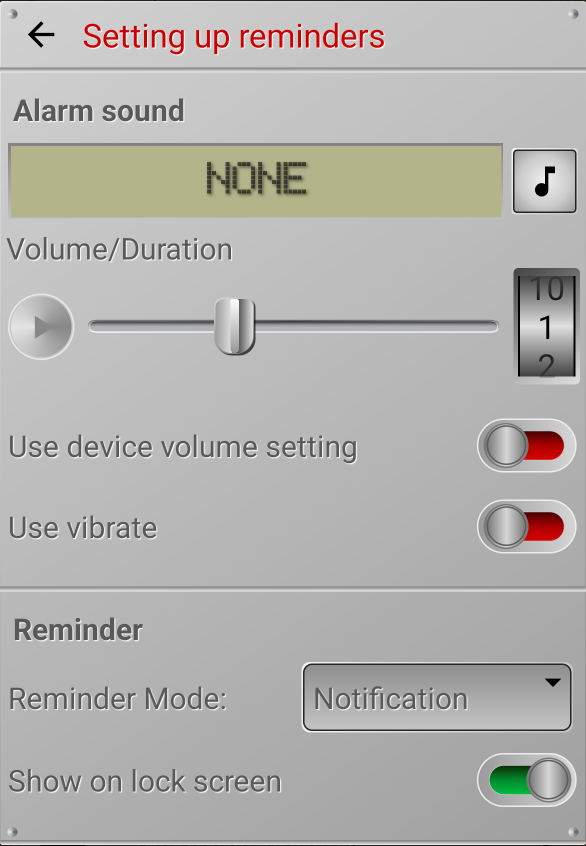
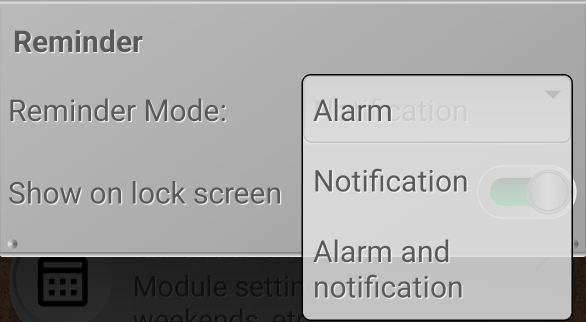
First of all, you need to decide on the reminder mode. The application has two reminder modes – Alarm and Notification. You can select one of these modes or both at the same time.
Alarm
When a reminder is triggered, a window opens with the note's contents and an alarm sounds according to the selected settings. The alarm window appears on top of all other windows, even on the lock screen (if this option is enabled).
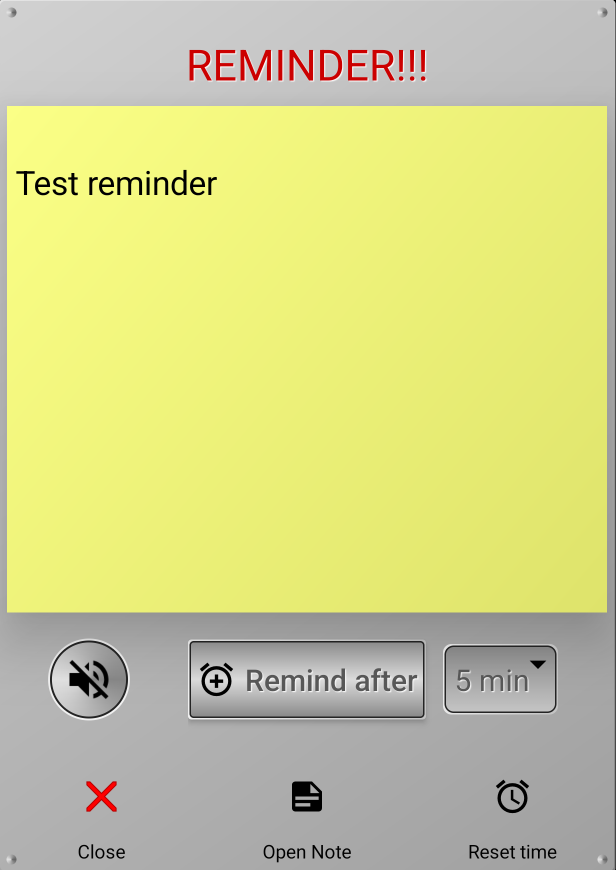
What you can do when the alarm window appears.
👉 You can simply close this window by tapping the red cross.
👉 You can turn off the sound by pressing the round button with a crossed-out speaker so you can think in silence about what to do next.
👉 You can open this note in the app.
👉 If needed, you can reschedule this reminder for another time. In this case, a window for setting the reminder date and time will open, similar to the one you see in the note when setting the reminder.
👉 You can snooze the reminder for a while so that it repeats after 5, 10, etc. minutes. Select the desired interval and click the "Remind after" button.
The alarm window will close automatically after the time selected in the settings.
Note:
If the alarm window appears on the lock screen, to prevent accidental presses in your pocket or bag, the buttons are covered by a "curtain" that must be slid down.
Notification
In this mode, the reminder appears as a standard Android notification.
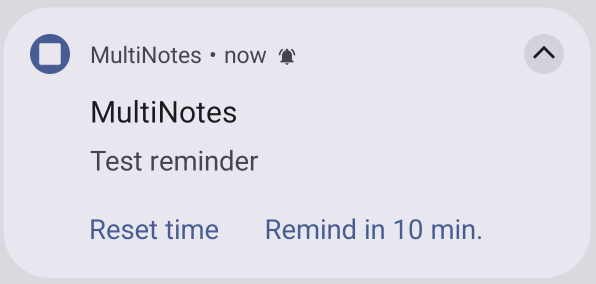
Unlike an alarm window, the notification will not close automatically after a while, so even if you miss the reminder, you can find it later among your notifications.
What you can do with the notification.
👉 You can simply dismiss the notification by swiping it.
👉 Clicking on the notification will open a note.
👉 If needed, you can reschedule this reminder for another time. In this case, a window for setting the reminder date and time will open, similar to the one you see in the note when setting a reminder.
👉 You can snooze the reminder, but unlike an alarm, only for a fixed time of 10 minutes.
Alarm Sound Settings
The alarm sound can only be configured for the Alarm mode. For Notification mode, the sound set for all notifications on your phone is used.
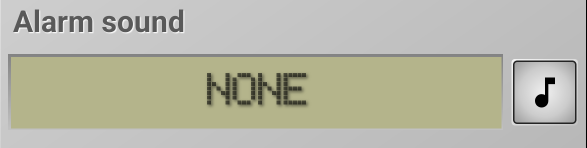
To select a sound, tap the button with the musical note.
In the window that opens, you can select one of three audio file storage locations.
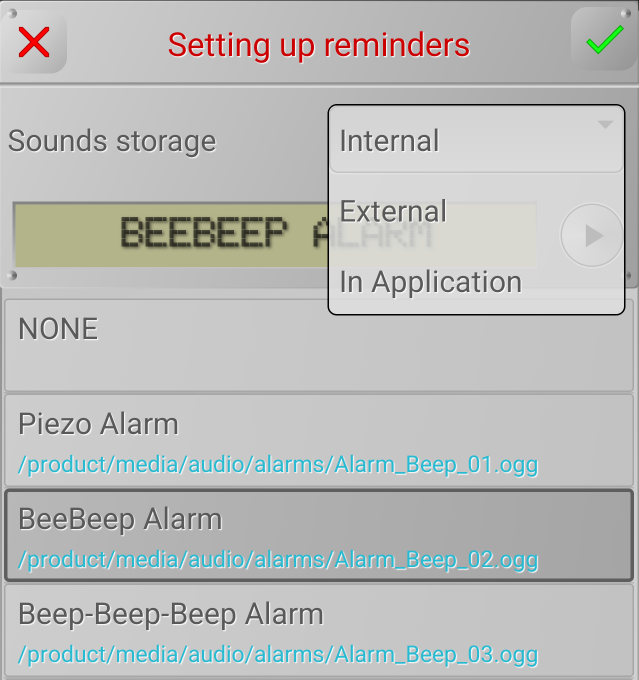
Internal
Audio files stored on your phone in the primary media storage.
External
These are sound files stored on your phone outside the main media storage, for example, in other apps, messengers, etc.
In Application
These are sound files attached to notes.
Click on the selected position so that its name appears in the top window. After that, you can click on the play button to listen to the selected file. If you are satisfied with the selection, click the green checkmark in the upper right corner.
To adjust the alarm volume and duration, use the following controls:
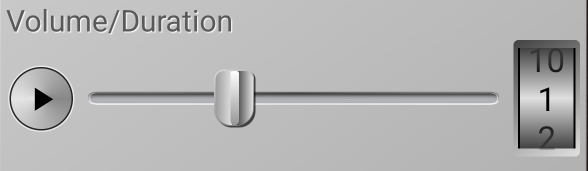
Move the slider to adjust the alarm volume, and turn the wheel on the right to set the alarm duration in minutes.
If you have an audio file selected, you can tap the play button to listen to it at the set volume.
Use device volume setting
If this option is enabled, the volume setting described above is ignored, and the alarm will sound at the volume set for alarms on your phone. If you want to set the reminder volume in the app independently of your phone's volume, disable this option.
Use vibrate
You can use your phone's vibration to remind you. In this case, you can set the minimum signal volume, then the reminder will only be in vibration mode.