 RU
RU  EN
EN Typing and editing text in a note is no different from similar functions in other applications. However, it is worth taking into account some features.
The default font size and color are set in Settings, in the Note Settings section.
You can use emoticons and emojis available in your on-screen keyboard in your note text.
To copy, cut, paste, and perform other similar functions, you can use the standard Android text menu. To make it appear, tap on the desired word in the text, hold it for a while and release. You will see a pop-up menu:
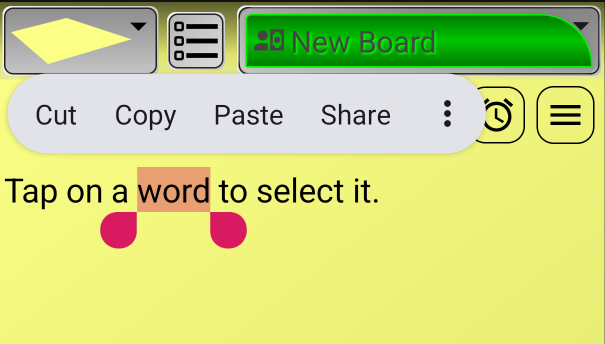
👉 To see the rest of the items in this menu, click on the three dots (︙).
👉 By moving the handles under the selected fragment, you can change the selection area.
👉 If the selected fragment is a link, the first menu item will open this link.
Note:
The full list of menu items may vary depending on your Android version and phone model.