 RU
RU  EN
EN Font Panel
You can change the appearance of the font in your note. You can change the font type (bold, italic, underline, and strikethrough), color, background, and size.
To do this, click the Font Panel button. This panel will appear over the attachment list. To remove this panel and see the attachments, click the button again.
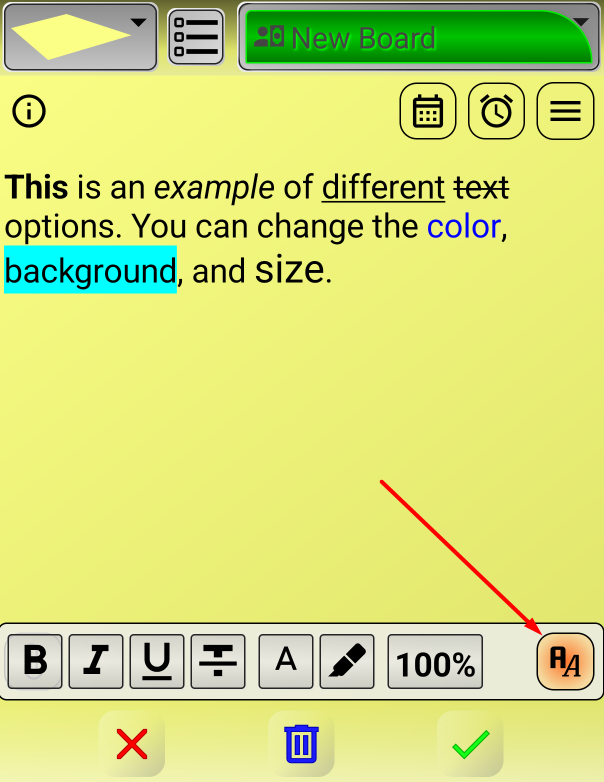
The first button changes the note font to bold, the second to italic, the third to underline, and the fourth to strikethrough. When you activate these buttons, they change color.
You can also change the font color. To change the font color, click the fifth button. A color selection window will appear.
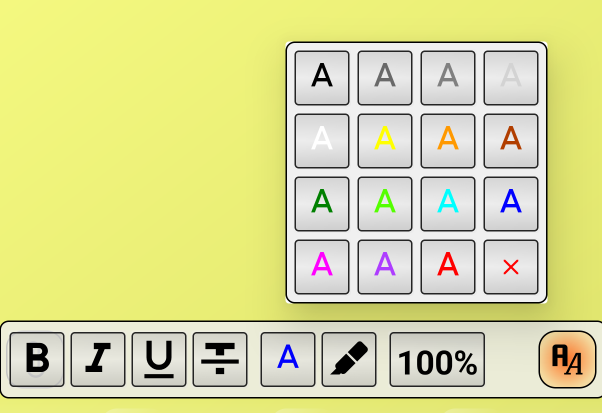
Click on the selected color. To cancel, click the red cross. Then the font will be the one set by default.
The next button, with the marker icon, is used to set a transparent background of a specific color. A background color selection window will appear on the screen.
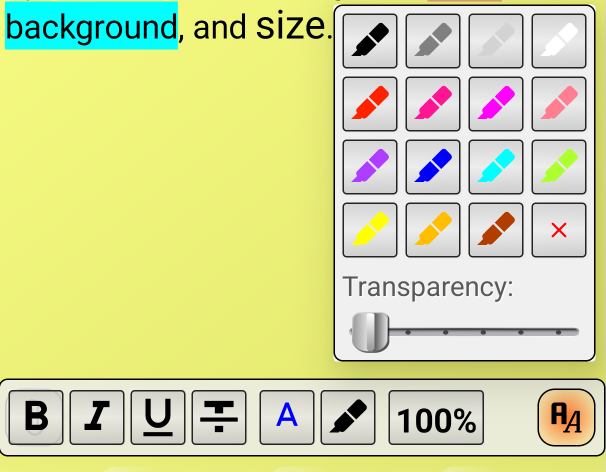
Select the desired color and set the transparency level on the scale by moving the slider. To cancel, click the red cross.
The next element in the Font Panel allows you to change the font size. Since the default font size depends on the settings on the phone and in the application, the font size changes as a percentage of the default font size. You can select this size from the drop-down list:
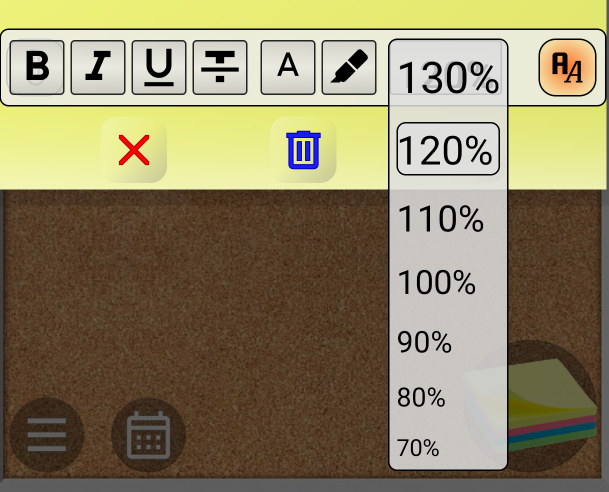
There are two main ways to use the Font Panel. First, you can select a specific section of text and click the appropriate button. The changes will be applied to the selected text. Second, you can place the cursor at a specific location in the text and enable the desired option. The text you type next will be changed according to the parameters you selected.