RU
RU  EN
EN Working with the Calendar
To open a note, simply click on it, just like you open notes on a board.
Sometimes, scrolling to the desired date in the Calendar takes too long, especially if the desired date is several months or even years away from the current date. In these cases, you can use the monthly calendar to quickly navigate to the desired date. To do this, click the button with the calendar image at the top of the window:
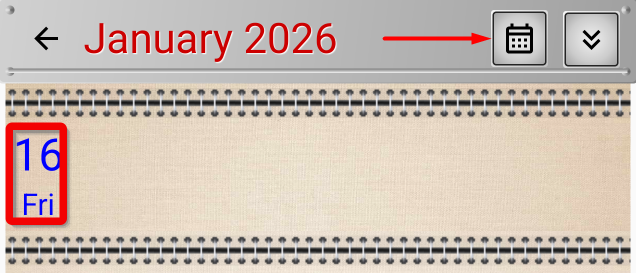
You will see a monthly calendar view for quick date selection:
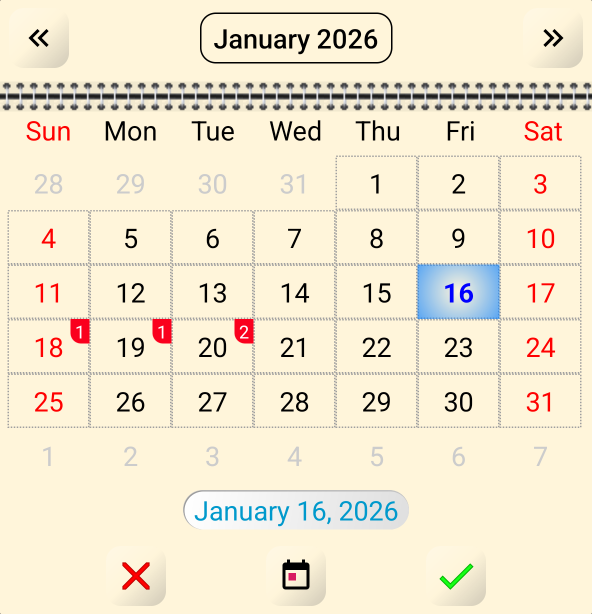
Please note that the dates to which notes are attached display the number of notes in the upper left corner. This allows you to quickly see which days have events assigned to them.
By clicking the buttons in the upper right and left corners of the screen, you can move to the next or previous month.
If you want to jump ahead even faster through several months or years, click the button with the month and year name at the top of the window. You'll see a window for quickly entering the month and year:
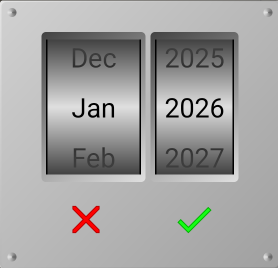
Rotate the wheels to select the desired month and year and press the green checkmark. If you find this input method inconvenient, you can simply click on the wheel and enter data using the keyboard.
Then, select the desired date in the selected month and press the green checkmark to return to the main Calendar. If you click the red cross, you will return to the Calendar without changing the dates.
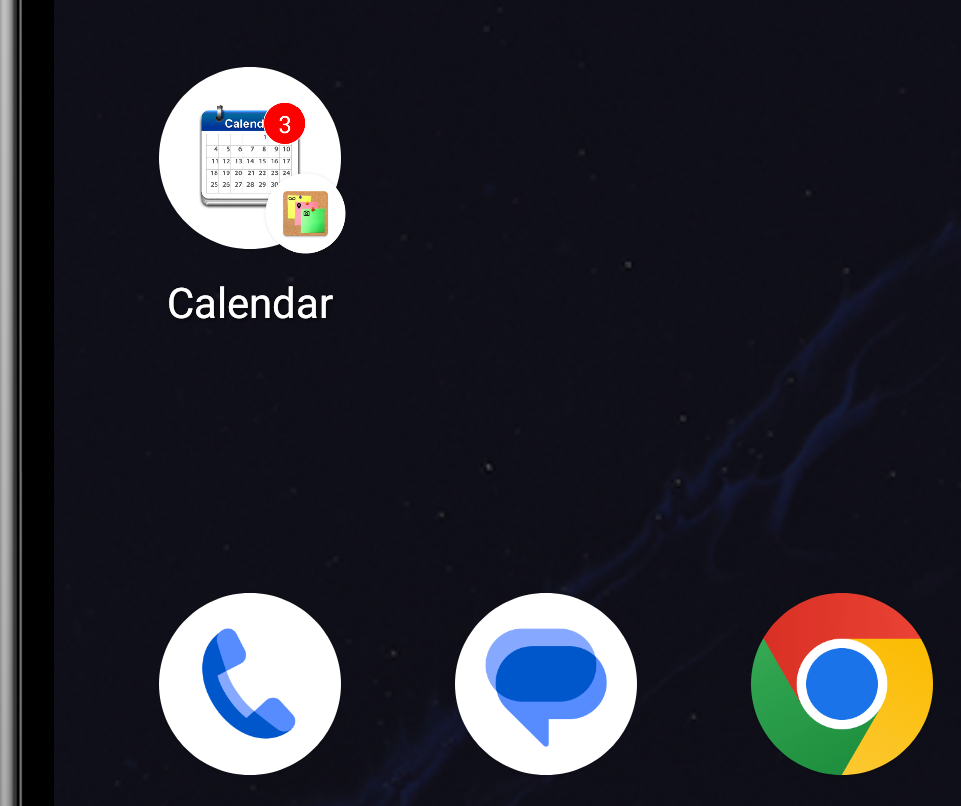
Please note that if you have notes attached to your Calendar for today, the number of these notes will appear on the Calendar icon:
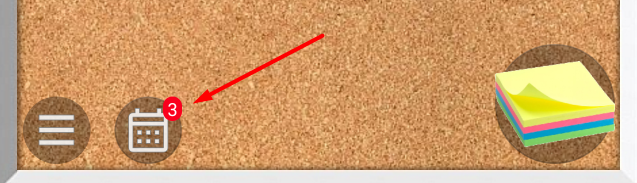
This way, by simply opening the app, you can immediately see what events you have coming up today.
This can be made even more convenient. In the "Settings" section, under "General settings", you can place a separate icon on your phone's home screen to launch the Calendar. This will allow you to open the Calendar directly, rather than the main app interface. In addition, this icon will also display the number of events for today.