 RU
RU  EN
EN Show search button
The app has a search system that allows you to find notes by keywords. If you enable this option, a Search button will appear in the upper right corner of the screen.
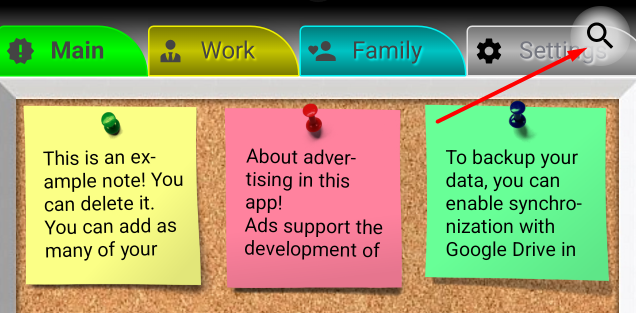
When you click this button, a search window opens:
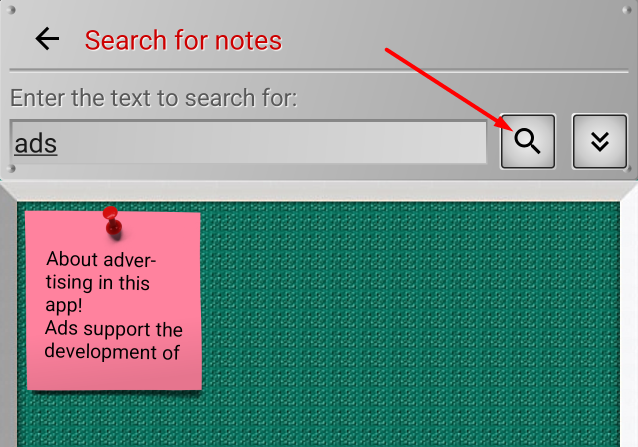
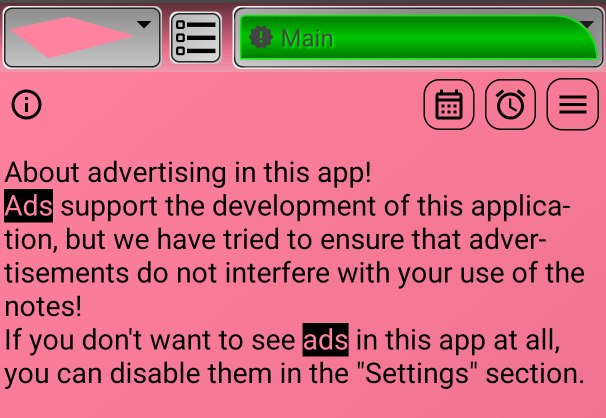
Enter your search text in the search bar and click the search button (with the magnifying glass icon). For example, we entered the word "ads". All notes containing the word "ads" will be displayed below. If you open such a note, you will see that the word you are looking for will be highlighted in the text.
You can limit or expand your search using advanced settings. To do this, click the down arrow button located next to the search button.
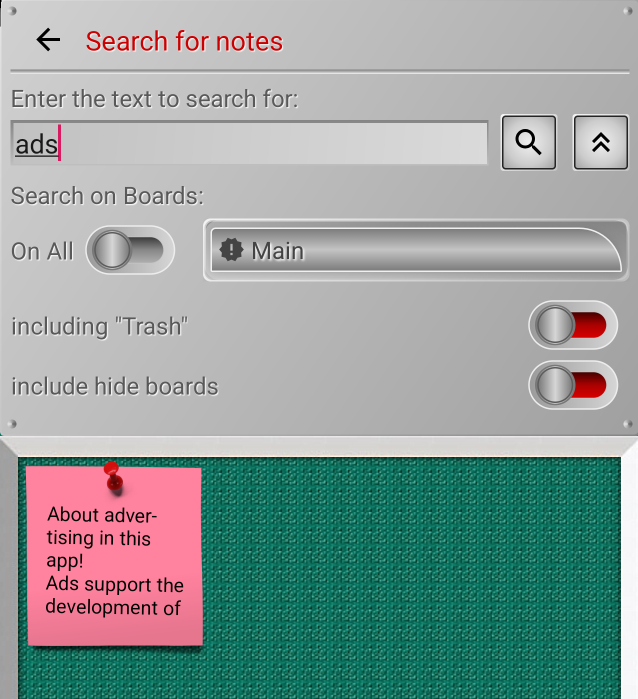
By default, the search occurs on all boards. However, if you want to search only a specific board, you can disable the "On All" option and select one specific board.
By default, the search does not include notes located on hidden boards and deleted notes still in the "Trash". However, if necessary, you can add the "Trash" and hidden boards to the search area by enabling the corresponding options.