 RU
RU  EN
EN Show note sorting button
The app has the ability to automatically sort notes by various parameters. If you enable this option, a button for sorting settings will appear in the upper left corner of the screen.
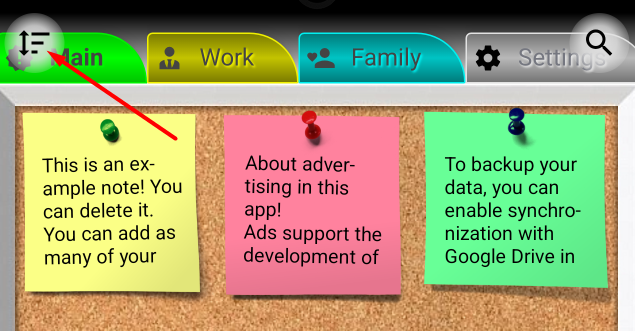
Click on this button and you will see the note sorting settings window:
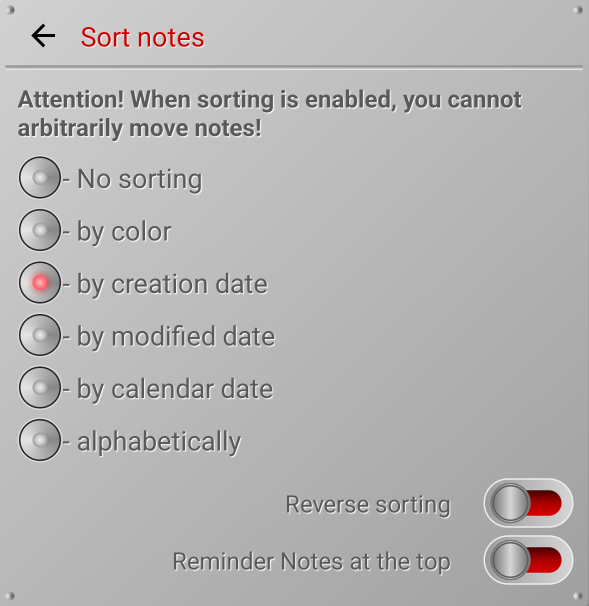
Let's briefly review each sorting option:
No sorting – in this mode, notes are not sorted automatically. When you add a new note, it is added to the next position on the board. But this mode has a great feature that's not available in the automatic sorting modes: you can move notes around with your finger, rearranging them.
By color – notes are sorted by color. The colors are sorted in the same order as they appear in the drop-down list in the note.
By creation date – each time a new note is created, the date and time of creation are saved in it, which do not change for the entire life of the note. So, with this sorting, you can see which notes are older.
By modified date – Each time you make a change, the date and time of saving the change are saved in the note. If you have sorting by this option enabled, the notes you recently edited will always be at the bottom.
By calendar date – in this mode, notes will be sorted by the date they were linked to the Calendar. Notes with this date, i.e., those linked to the Calendar, will be at the top. Notes that are not linked to the Calendar will be at the bottom.
Alphabetically – in this case, notes are sorted by note text in alphabetical order.
In addition to sorting options, there are two other options that may be useful:
Reverse sorting – if this option is enabled, notes will be sorted by the selected option in reverse order. For example, if you have sorting by note creation date enabled, the older notes will be on top. However, if you enable reverse sorting, the newest notes will be at the top.
Reminder Notes on top – is an additional mode that is useful if you have a lot of notes with reminders. In this mode, notes with reminders will always be at the top of the board. The remaining notes will be sorted according to the selected parameter.
Note 1:
If you have sorting enabled by any of the parameters, then when you add a new note or change its parameters, the note is sorted according to the selected sorting parameter.
Note 2:
Sorting is enabled for all boards at once.