 RU
RU  EN
EN Password Protect
You can password protect important notes. To make this process easier and faster, all notes use a single password, which you can set in the "Settings" section of the "Security" section. Therefore, this menu item will appear in the note only after you set a password in Settings.
When a note is password protected, its contents are not visible on the sticky note on the board. However, to prevent the note from appearing completely empty and to help you distinguish one password-protected note from another, an additional "Visible Text" field appears in the note.
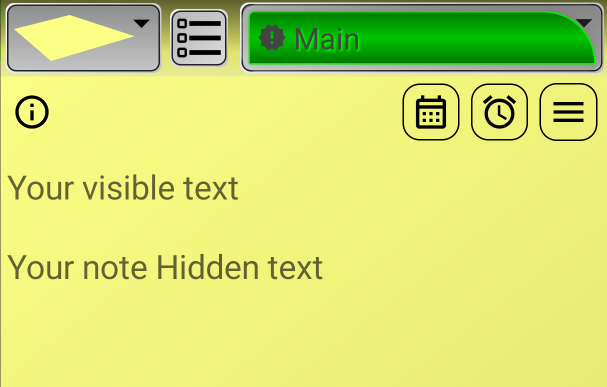
In this field, you can enter some text that will be displayed on the board. The rest of the text will be hidden.
When you try to open a password-protected note, you'll see the following window:
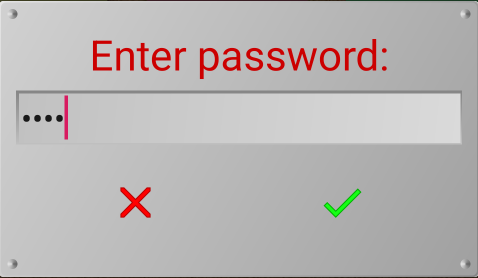
To access the note, you must enter the password you set in Settings.
Note 1:
If you enabled biometric authentication when setting your password, an additional window or message will appear asking you to place your finger for authentication. If you have face authentication set up on your phone, it will happen automatically.
Note 2:
If a note is password-protected, it will affect all its usage modes, such as placing it as a widget, printing, etc. If you decide that a note no longer requires password protection, you can undo it. To do this, open the menu again and select "Remove Password."
Note 3:
After password-protecting or unprotecting a note, be sure to save the note by tapping the green checkmark; otherwise, the new state will not be remembered.