 RU
RU  EN
EN Pin to Home Screen
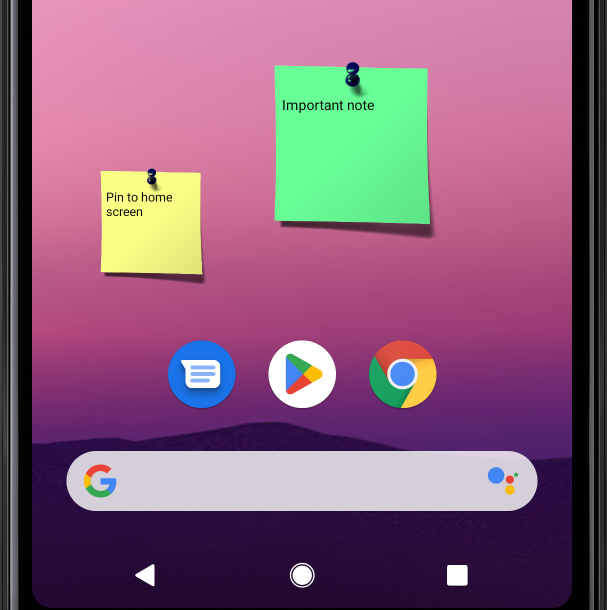
This is one of MultiNotes' most popular features. You can pin any note to your phone's home screen as a widget.
Note 1:
Unfortunately, placing a widget directly from the app isn't supported on all phones. If your phone doesn't support this feature, you won't see this menu option. What to do in this case, you can read in this section.
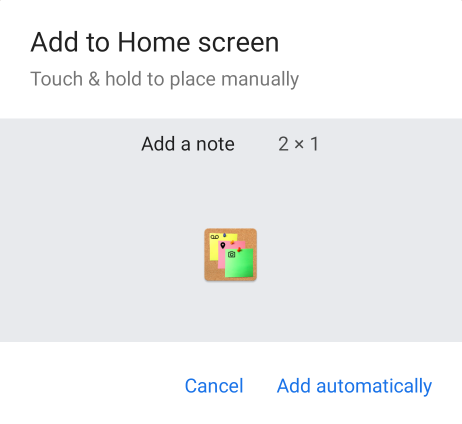
After you select "Pin to Home Screen," a warning will appear on the screen informing you that the note will be saved and closed. To confirm, click on the green check mark. After that, you will see a widget placement window that will look something like this:
Note 2:
This window is not part of the app and may vary slightly on different phone models.
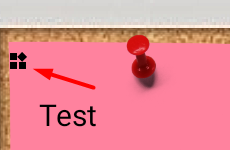
After this, the note in the application will be closed and an icon will appear in the upper corner. It will distinguish it from other notes on the board. Please note that the note is not transferred from the app to the screen; it remains on both the board and the screen.
👉 To open a note on the screen, simply tap on it the same way as in the app. The note will open separately, outside the app interface.
👉 You can remove the widget from the screen in the same way you remove widgets from other apps. This procedure may vary on different phones. Typically, you need to tap and hold on the widget until a pop-up menu appears, which will contain the “Delete” option. When you delete a widget, the note itself is not deleted, but remains in the application.
👉 When deleting a note that a widget is linked to, the widget itself isn't deleted; it simply remains on the screen without the note. This is a feature of the Android system. Therefore, you will see a corresponding warning.
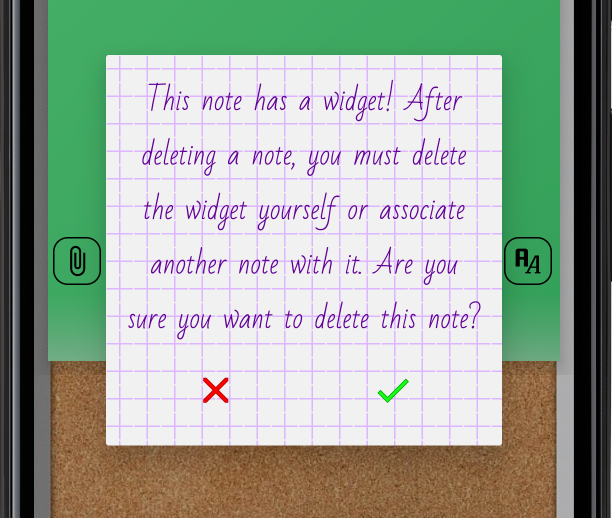
If you click the green checkmark, the note will be deleted and the widget will look like this:
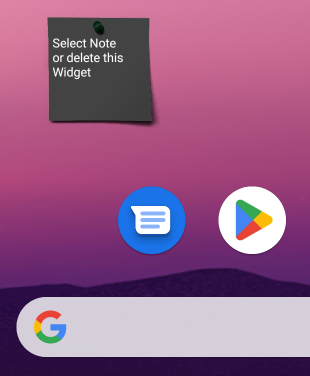
You can either delete this empty widget or link another note to it.
Note 3:
If you add a widget via a menu item in a note, it's easier to delete that widget and create a new one than to link another note to that widget.
If you decide to link another note to this widget, click on it. You will see a search window:
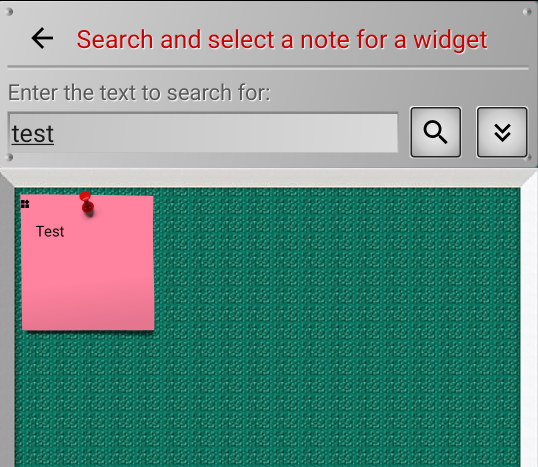
Enter a search term to find the note you need. Click on the search button. All notes containing that term will be displayed below. Click the desired note, and it will be attached to this widget.