RU
RU  EN
EN Add an event to Phone Calendar
You may already know that any Android phone has a calendar where you can schedule events, mark dates, and more. Most often, this is Google Calendar, but other calendars may also be preinstalled by the phone manufacturer or installed by the user. The MultiNotes app can interact with these calendars. You can create an event from a note in the selected calendar, and then open this event from the linked note at any time.
Note 1:
Don't confuse the Calendar mode in MultiNotes with external calendars available in other apps on your phone. This menu item is specifically about these external calendars that you may already be accustomed to using.
Note 2:
Once upon a time, it was possible to open a linked note from the calendar. However, starting with Android 8, Google, for unexplained reasons, removed this feature. Most likely, as usual, for "security reasons." Therefore, while you can now open a calendar from a note, you unfortunately cannot open a note from a calendar.
If you don't have any calendars registered on your phone, you will receive a corresponding message and will not be able to use this feature. If you have calendars, you will see the following window:
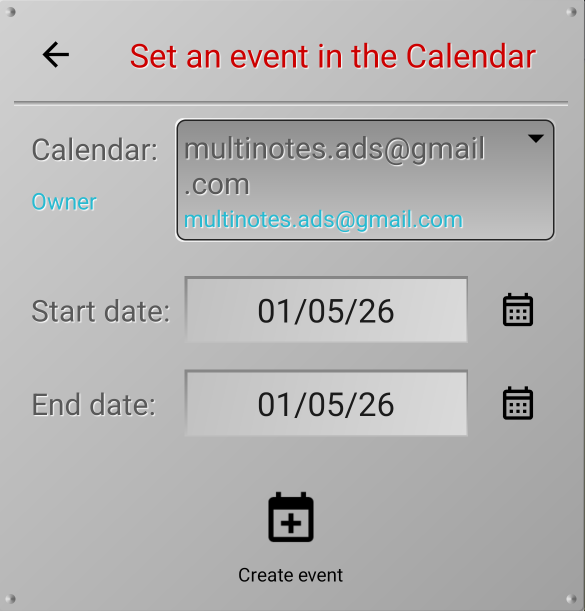
You can select the desired calendar from those calendars that are on your phone. Then, set the start and end dates of the event and click the Create Event button.
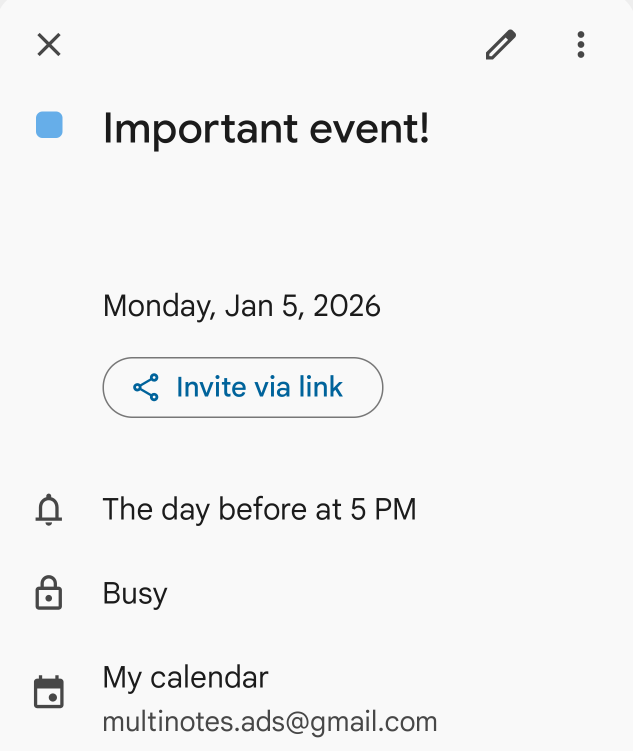
An event with the text in your note will be created in the calendar you selected for the time period you set.
Note 3:
The event's appearance may depend on the Android version (in the case of Google Calendar), or may have a different appearance entirely if you're using calendars from other developers.
After creating the event, the window will look like this:
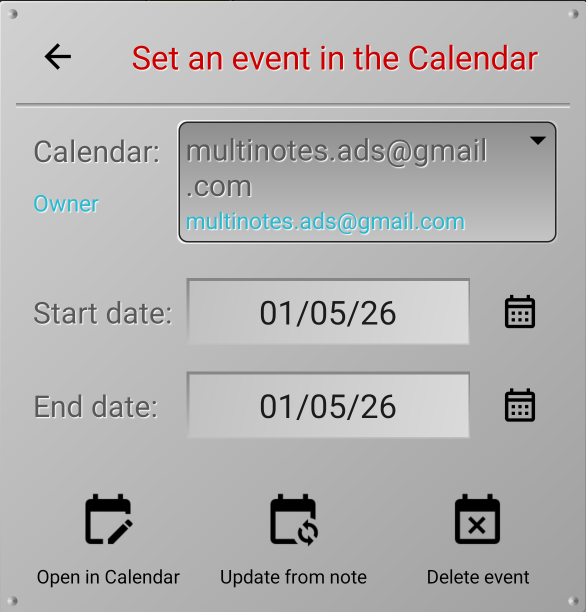
In this window, you can perform the following actions:
👉 To delete a calendar entry, tap the "Delete Event" button. A warning will appear on the screen, asking you to confirm or cancel the deletion.
👉 Open the event in the calendar. Tap the "Open in Calendar" button. The corresponding Calendar app will launch and open the event.
👉 If you've made changes to the note text, you can update the text in the calendar event. To update the information in the calendar, tap the "Update from Note" button. A warning will appear on the screen that the previous text information will be lost.
When a note is linked to a phone calendar event, the menu item changes to "Event in Phone Calendar." By selecting this item, you will be able to perform actions with this event.
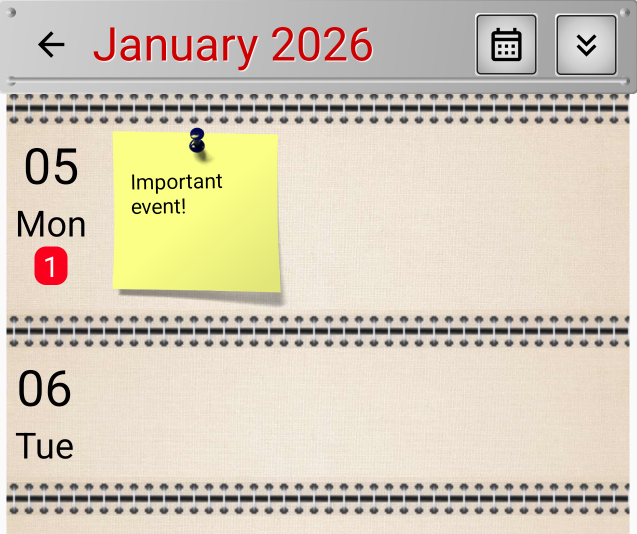
When you add an event to your phone's calendar, that note is also linked to the app's calendar. By clicking the calendar button at the bottom of the board, you can see your note on the calendar: