 RU
RU  EN
EN Page 2 of 8
Add Photo
This menu item allows you to take a photo directly from a note and attach it to the note. By tapping the bottom item with the camera icon, you'll see your phone's Camera app launch:
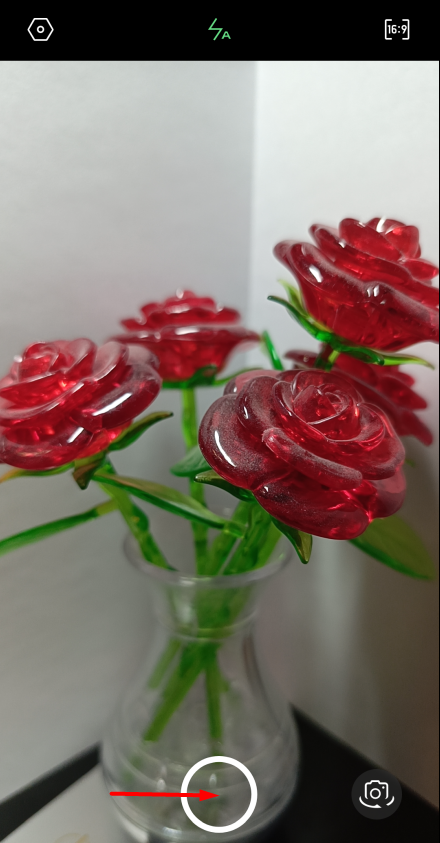
Take a photo just as you normally would. You'll see a checkmark or "OK" button appear at the top or bottom of the screen (depending on your phone model). When you click it, the image will be transferred to the note and opened immediately. Tap the back arrow to close the photo, and you'll see its thumbnail in the attachments area. In the image below, the attachments area is outlined in red. This is where all the attachments you attach to your note will be stored.
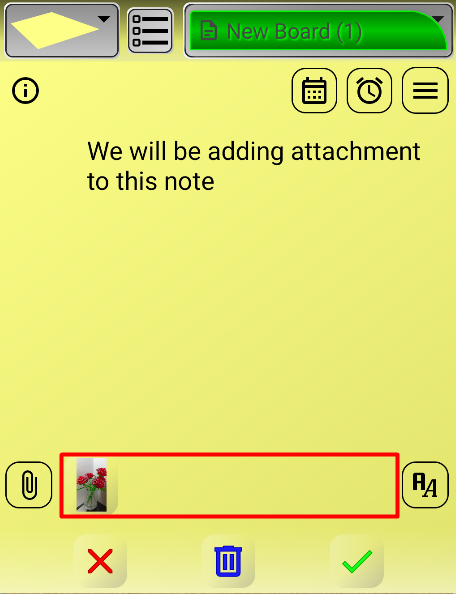
If the number of attachments is large enough, this area will scroll left and right.