 RU
RU  EN
EN
Photo and Video Actions
All photos and videos attached to a note open for viewing in a single full-screen window. Click on any photo or video and it will open in full screen.
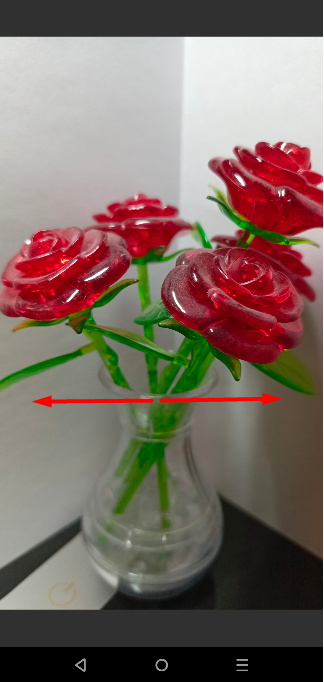
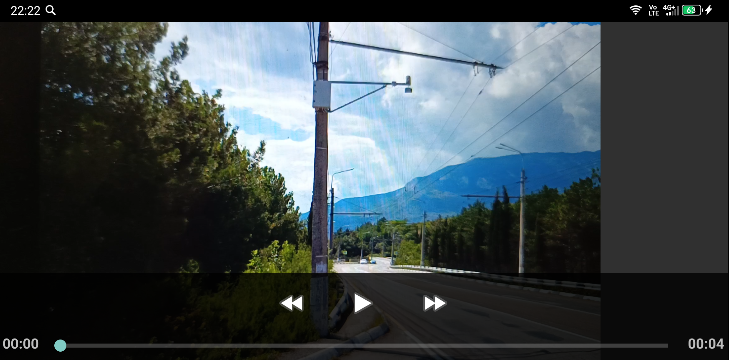
To view other photos and videos from this note, you don't need to close and reopen the other image; you can simply swipe left and right. Standard zoom-in/zoom-out, pinch-in/pinch-out, and double-click gestures work for photos. Clicking on a video reveals playback controls.
If you click on an image, a pop-up menu will appear at the top, allowing you to perform several actions with the media:
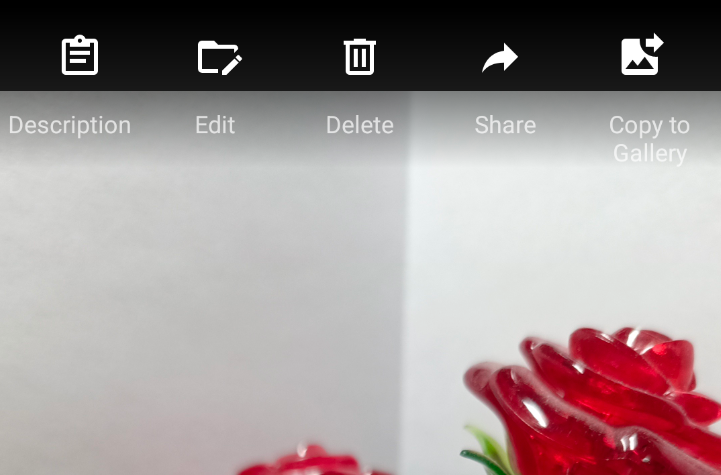
Let's look at the purpose of each menu item in turn.
Description – you can add a short text description to each attachment. Select this menu item, and you'll see a description entry window:
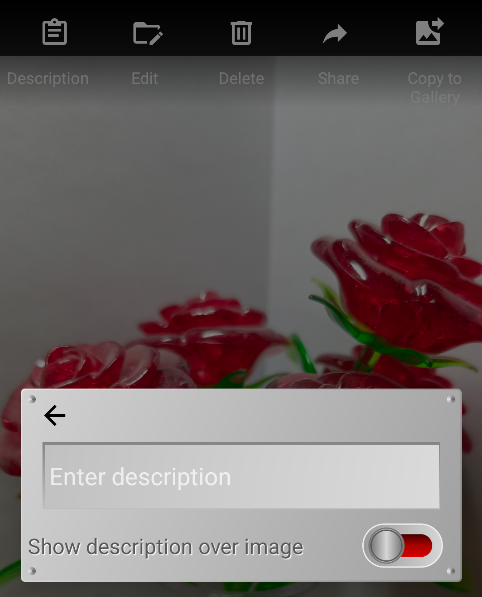
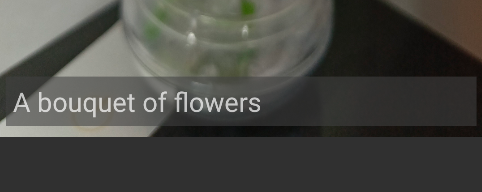
Enter a description in the text field and click the back arrow to return to the attachment. If you want the description to appear over the image when viewing, enable the "Show description over image" option. It will look like this:
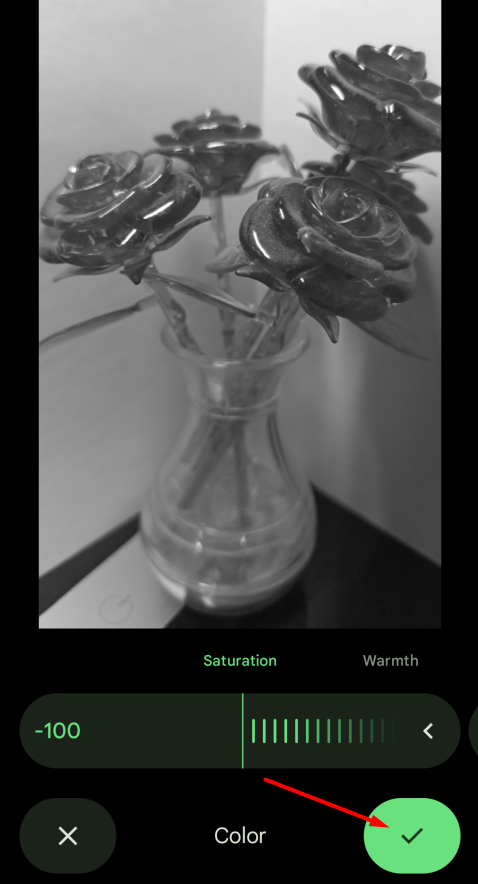
Edit – this menu item will only appear if you have the Google Photos app installed on your phone. This app offers a wide range of tools for processing and editing photos and videos. When you select this menu item, your photo will open in Google Photos. Perform the necessary processing (for example, converting a photo to black and white), and click the checkmark button:
Then, click the "Save" button and you will see a prompt:
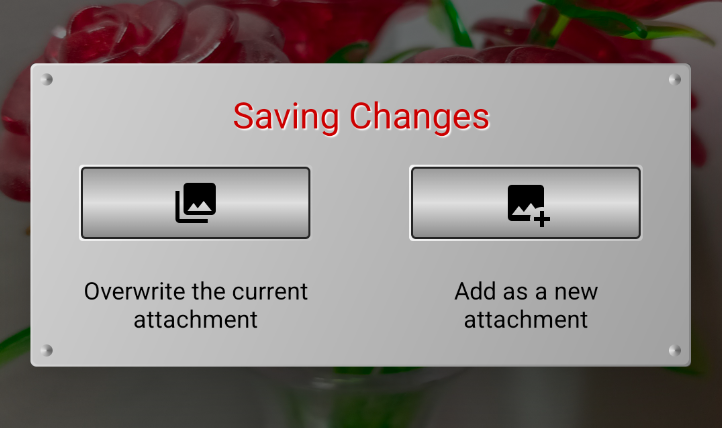
If you select the first option, the original media file will be overwritten with the modified one. In this case, the original file will be lost. If you select the second option, the original attachment will not be changed, and the modified version will be added as another attachment.
Delete – Select this option if you want to delete the selected photo or video. You will see a warning:
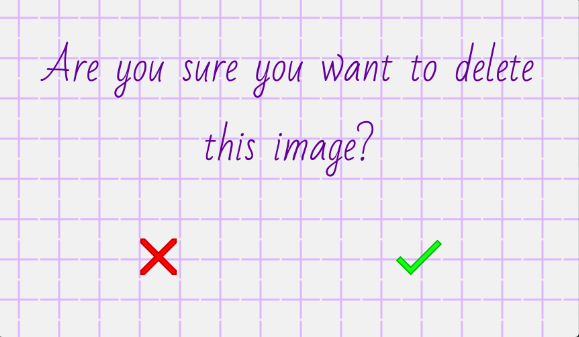
If you click the green checkmark, the photo or video will be deleted; if you click the red cross, the action will be canceled.
Share – this option allows you to forward the photo or video to someone else. This can be done through other apps and tools that allow you to send information, such as email, social media, messengers, and so on. This will depend on the apps and programs installed on your phone. When you select this option, a list of these apps will appear at the bottom of the window. Select the desired app, it will open, and the file will appear in it. After that, you can send it to the desired subscriber.
Copy to Gallery – If you create a photo or video directly from a note, the file is created in a private folder within the app. Therefore, it will not be accessible in the Gallery or other apps. Select this menu item if you want to copy the photo or video to your phone's Gallery.
Note 2:
To work with images and videos, you may need to grant the app permission to access your media storage the first time you use it.
Previewing photos and videos
You can tap and hold on a photo thumbnail in a note. A pop-up window will appear with the image:
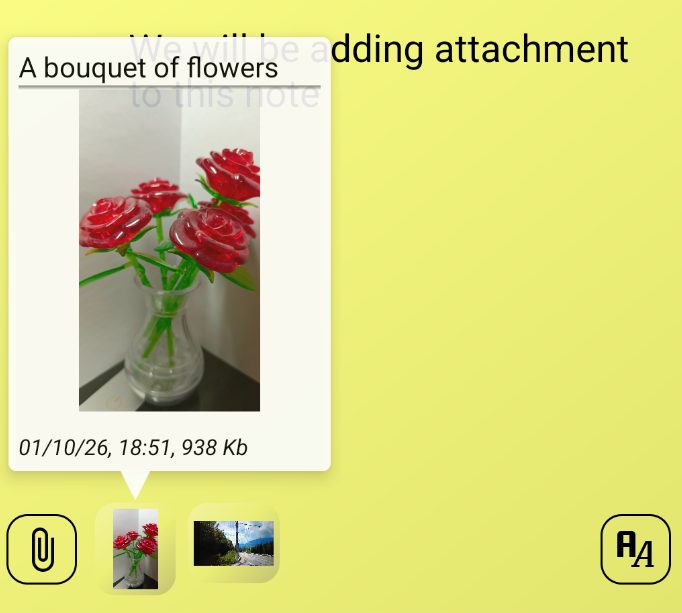
The attachment description appears above the image. If you haven't added a description, the file name will appear here. Below the image, the creation time and image size are displayed. The video preview window also displays buttons for playing the video and turning the sound on/off.
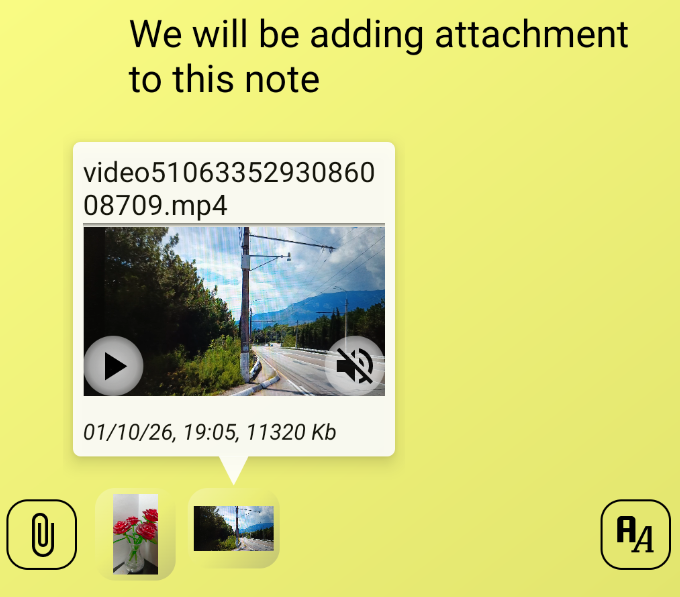
To close the preview window, simply click anywhere on the note.