 RU
RU  EN
EN
Add Audio
This menu item opens the built-in voice recorder/player, which you can use to record audio files and add them as attachments to your note. You can also play audio files added to your note. Select this menu item, and you'll see the voice recorder window:
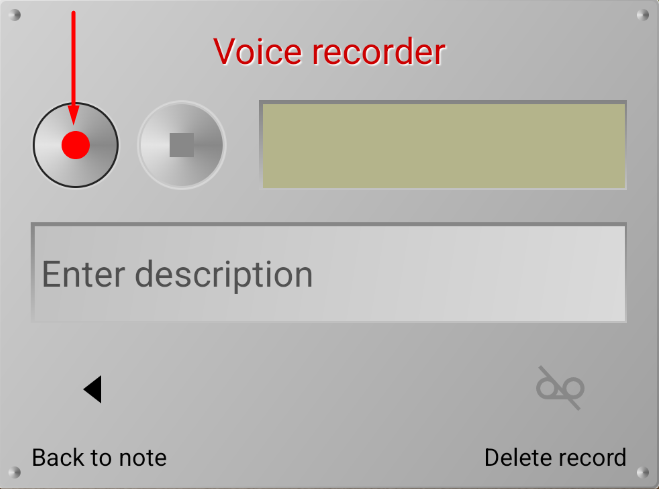
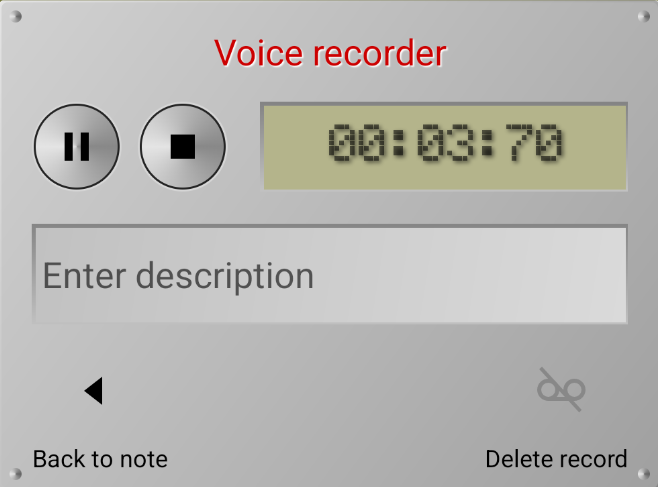
To start recording audio, click the Record button (=). You will see a count of the recording time. To pause recording, press the Pause button (;), and to finish, press the Stop button (<).
After this, a play button (4) and a recording duration slider will appear. You can click the play button and listen to the recording from any point.
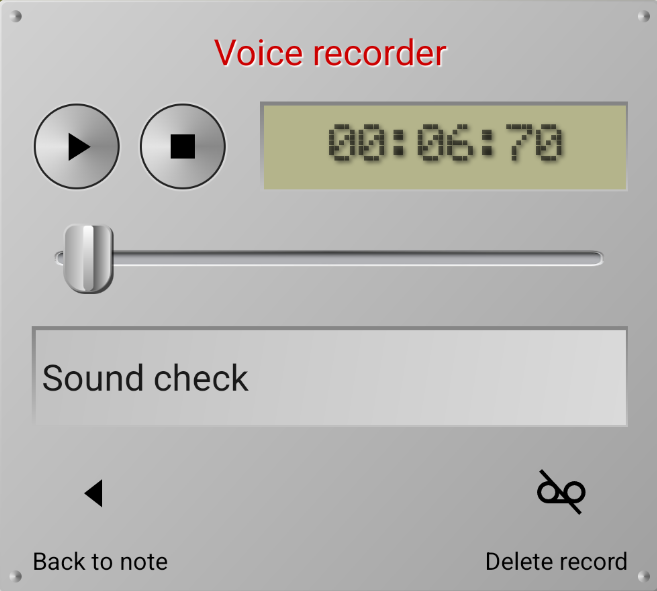
👉 To see what the recording is all about, you can add a brief description.
👉 If you're not satisfied with the recording or no longer need it, you can delete it by clicking the button in the bottom right. Clicking the back arrow will return you to the note.
To listen to the recording, click on the recording's thumbnail in the note to reopen the Voice Recorder/Player, and then click the play button. The sound recording also has a preview mode. Click and hold on the recording's thumbnail until a pop-up window appears:
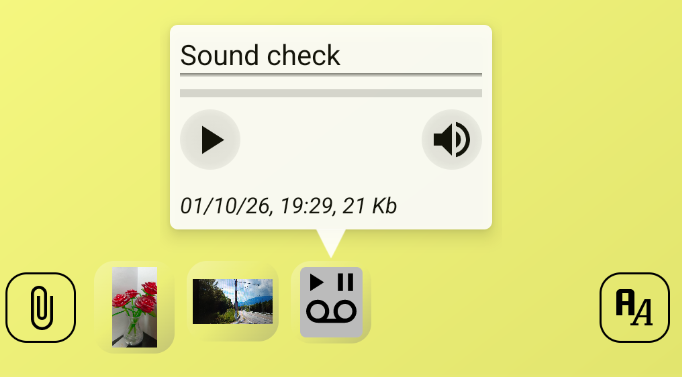
In this window, you can also listen to this audio attachment.
Note 3:
When using it for the first time, you may need to grant permission for the app to use your phone's microphone.