 RU
RU  EN
EN
Add File
This menu item allows you to attach any file available on your phone to a note. These can be documents, spreadsheets, etc., as well as photos, videos, and audio files that are already on your phone, for example, in the Gallery. Selecting this menu item will most likely open the Gallery or the storage location you last used. The appearance of the file selection window may vary depending on your phone model and Android version. But, in most cases, in the upper left corner you will see a button (≡), clicking on which you will see available file storage locations:
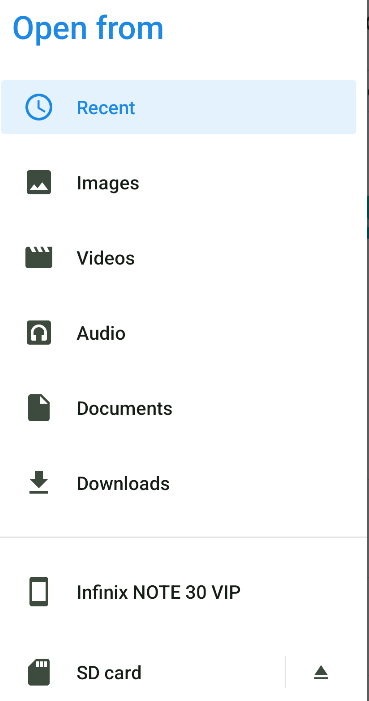
Select the desired folder and file. If you want to add multiple files at once, you can select them and click the Select button. All selected files will be attached to the note. As always, you can view the file parameters in the preview.
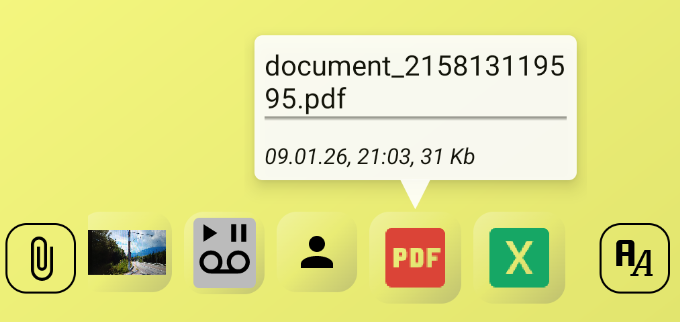
Click on the attachment icon to open the document window.
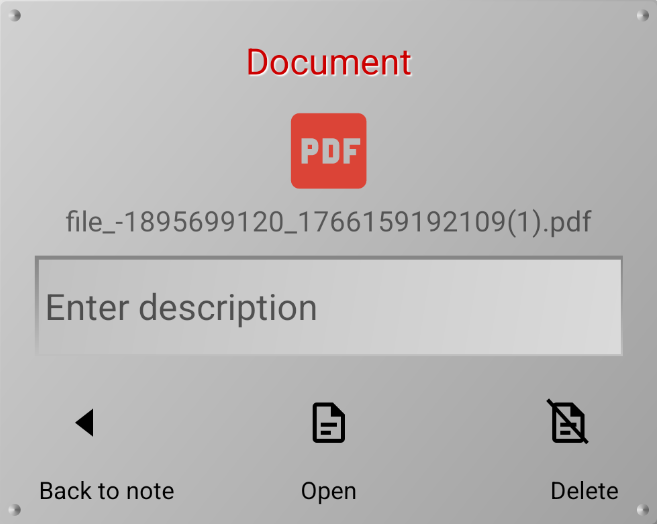
👉 You can add a description to the document; it will then appear in the preview instead of the file name.
👉 You can delete a document from a note. A warning window will appear asking you to confirm your action.
👉 You can open the file in the associated application. The thing is that the application itself cannot handle files of all formats, so when you click the "Open" button, you will be asked to select an application that can work with files of this type. If there is no choice and there is only one such application, the file will be opened by this application.